How to Embed a PDF on a Website
Embed your FlowPaper publication on a blog or website so visitors can read it directly without leaving the page.
Explore the benefits and display options on our website embedding feature page.
In the video tutorial below, we upload a publication to Squarespace. The same approach works for WordPress, Wix, self-hosted sites, and other web platforms.
What is embed code?
Embed code is a short piece of code that tells your website where to display the publication.
How embedding works
When you publish a document in FlowPaper, you can copy its embed code and paste it into your website where you want the publication to appear. The code uses an iframe, a way to display one web page inside another.
If you are new to FlowPaper Publisher, start with Beginner Basics.
1) Create an embed code in FlowPaper
After importing and editing your document in FlowPaper Publisher:
1) Click Publish in the top-right corner
2) Choose either self-hosting on your own domain or FlowPaper Cloud hosting
3) Click Start Upload when processing is complete
4) Once published, copy the embed code
2) Embed the publication on your website
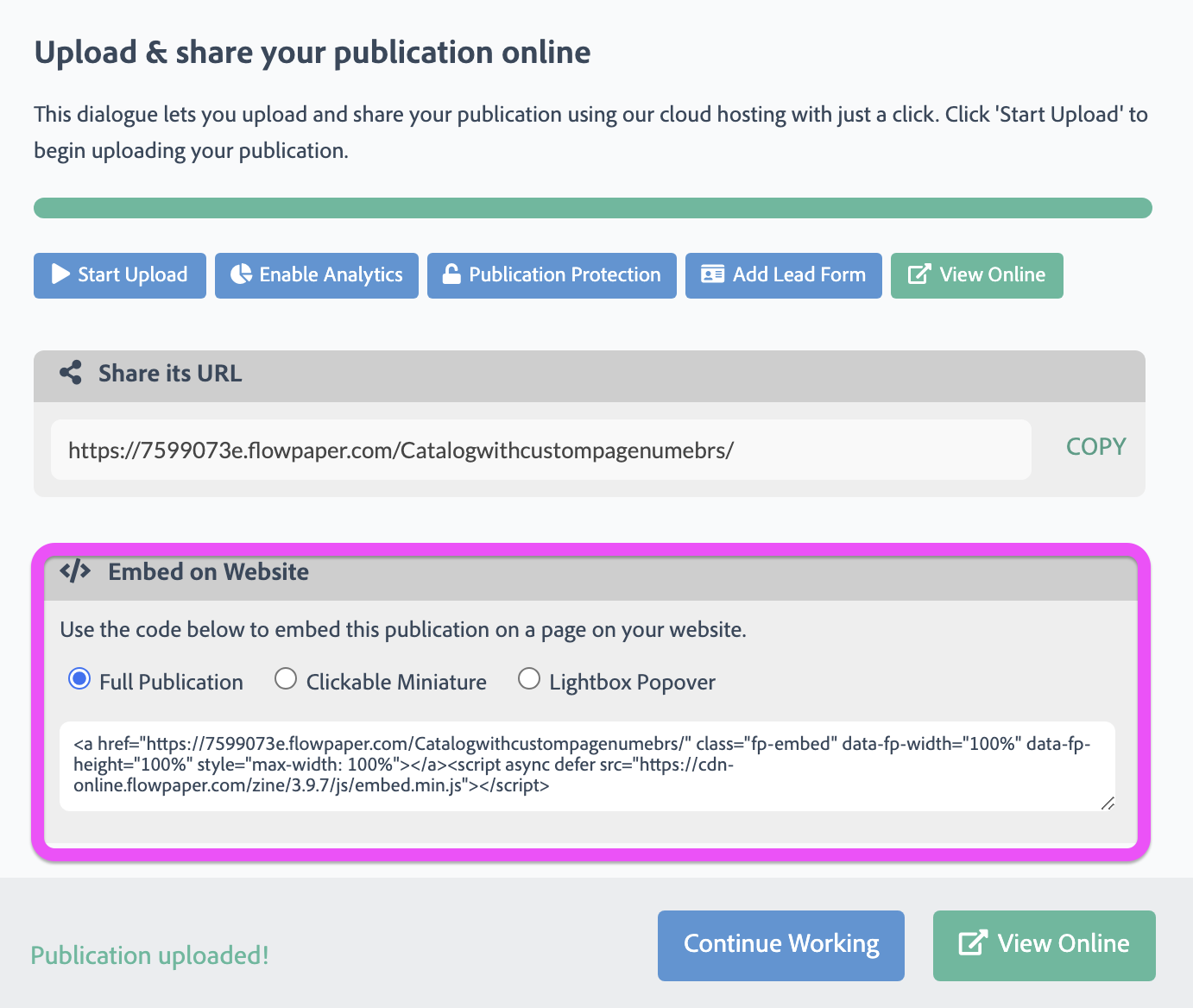
FlowPaper supports different display modes:
-
Full publication embed - displays the entire interactive document
-
Clickable thumbnail - opens the publication when clicked
-
Lightbox popover - opens the publication in a popover view when clicked
Choose the option that best matches your website layout and user experience.
Paste the embed code into an HTML or iframe block in your website builder or CMS.
3) Customize the embed
You can adjust publication size by modifying width and height values in the embed code.
For example:
<a href="(YOUR_PUBLICATION_URL)" class="fp-embed" data-fp-width="100%" data-fp-height="100%" style="max-width: 100%">(YOUR PUBLICATION TITLE)</a><script async defer src="https://cdn-online.flowpaper.com/zine/4.1.7/js/embed.min.js"></script>
Adjust these values to fit your layout and improve the viewing experience.
4) Platform-specific embed steps
WordPress
1) Publish your document in FlowPaper and copy the embed code
2) In WordPress, open a page or post and click + to add a block
3) Choose Custom HTML and paste the FlowPaper embed code
4) Save or update the page, then adjust data-fp-width and data-fp-height if you need to resize the publication
Read more about how to do this in detail here: Embedding in WordPress
Wix
1) Publish your document and copy the FlowPaper embed code (full publication or clickable thumbnail)
2) In Wix Editor, go to + Add Elements > Embed Code > Embed HTML > Add to Site
3) Open HTML Settings, choose Code (not Website address), and paste the embed code
4) Click Update, then resize the embed block in the editor or adjust width and height in the code
Read more about how to do this in detail here: Embedding in Wix
Squarespace
1) Publish your document on FlowPaper Cloud and copy the embed code
2) In Squarespace page editing, add a Code block
3) Paste the FlowPaper embed code into the block and save
4) If needed, adjust width and height values in the embed code to fit your layout
Read more about how to do this in detail here: Embedding in Squarespace