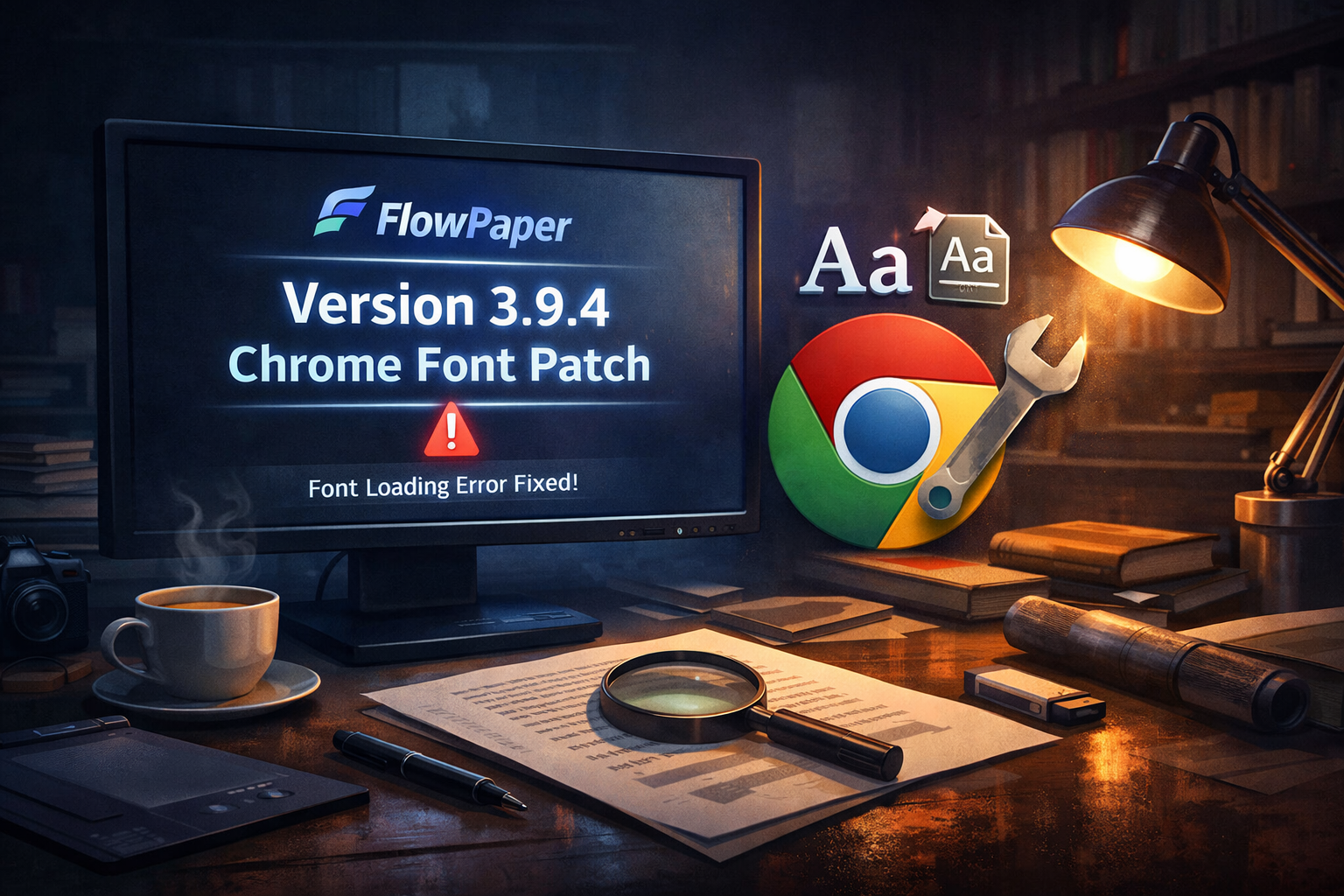
We’ve released an updated version of the FlowPaper Desktop Publisher: Version 3.9.4.
A recent change introduced in Chrome caused an error in font loading, which affected how fonts were rendered in certain publications created with FlowPaper Desktop Publisher.
To address this, we created a patch and released an updated version of FlowPaper 3.9.4, which restores proper font loading and improves compatibility with the latest Chrome updates.
If You’re Using FlowPaper Cloud Hosting
All publications hosted on our cloud have already been patched with this version. No further action is needed for your existing publications.
How to Patch Your Existing Self-Hosted Publications
If you are self-hosting your publications then follow these steps:
Download the latest version of FlowPaper from below.
Import a PDF into the desktop publisher, click "Publish" and choose "Custom Domain"
From the output folder, copy the "js" and "css" folders to your server, replacing the existing ones.
Most companies send out PDFs every day — sales proposals, brochures, reports, catalogues — but have no idea if anyone actually reads them.
Did they open it?
How long did they stay?
Which pages captured attention?
Did they click your links?
If you’ve ever wondered how to track who viewed your PDF, this guide will walk you through everything you need to know about PDF analytics, document tracking, page-level engagement, and heatmaps.
Why Traditional PDFs Don’t Provide Real Insights
When you send a standard PDF attachment or upload a raw file to your website, you typically lose visibility. At best, you may know that someone downloaded the document — but you won’t know:
How many times your PDF was opened.
How long readers spent on each page.
Where readers dropped off.
Which links inside the PDF were clicked.
Without PDF engagement tracking, your documents become static files instead of measurable business assets.
FlowPaper changes that by turning your PDF into an interactive publication with built-in document analytics and heat maps.
How to Track PDF Views and Sessions
Once you publish your document with FlowPaper, you immediately gain access to built-in PDF analytics.
You can see:
Total sessions — exactly how many times your PDF was opened.
Impressions over time — track activity during campaigns, launches, or newsletter sends.
This makes it easy to monitor performance right after sending a sales proposal or sharing a marketing brochure.
Measure Average Read Time Per Page
Knowing that someone opened your document is helpful — but understanding how long they actually read it is even more powerful.
FlowPaper provides average read time per page, helping you identify whether readers are deeply engaged or quickly flipping through your content.
For example:
If a page receives many views but very little reading time, it may need clearer messaging or design improvements.
If a page consistently keeps readers longer, it signals strong engagement and relevance.
This type of page-level PDF tracking allows you to continuously optimize your content.
Track Link Clicks Inside Your PDF
Many PDFs include links to product pages, landing pages, booking forms, or websites. Standard PDFs don’t tell you if those links were ever clicked.
With FlowPaper, you can track external link clicks directly inside your PDF. This is particularly valuable for:
Sales proposals with call-to-action buttons.
Marketing brochures driving traffic to campaigns.
Catalogues linking to product pages.
Lead magnets designed to generate conversions.
Now your PDF becomes part of your measurable marketing funnel.
Use Page-Level Analytics to Improve Content
FlowPaper’s page-level document analytics allow you to analyze performance page by page.
For each page, you can see:
Number of views
Average time spent
Engagement interactions
This helps you identify:
High-performing pages worth expanding.
Low-engagement pages that need redesign or clearer messaging.
Drop-off points where readers lose interest.
Instead of guessing what works, you can make improvements based on real reader behavior.
Visualize Engagement with PDF Heat Maps
Heat maps provide a visual representation of how people interact with your publication.
They highlight:
Click activity
Zoom interactions
Areas of high reader interest
The most active sections are clearly displayed, making it easy to spot what draws attention — and what gets ignored.
These PDF heatmaps make content optimization faster and more data-driven.
Turn Static PDFs Into Data-Driven Assets
Instead of sending blind PDFs and hoping they perform, FlowPaper helps you:
Track who viewed your PDF.
Measure engagement per page.
Monitor link clicks and campaign activity.
Optimize content using real analytics and heatmaps.
Whether you use PDFs for sales, marketing, investor updates, or product documentation, PDF tracking and analytics help you create more effective content.
Stop sending static documents. Start measuring engagement — and make every PDF smarter.
If you’ve ever wanted to embed a PDF on a website, you’ve probably come across the term flipbook. But what exactly is a flipbook—and why are some flipbook makers quite different from others?
What is a flipbook?
A flipbook is a realistic, interactive version of a printed publication that behaves like the real thing. Instead of scrolling through a static document, readers can:
Flip pages naturally
Zoom in to read details
Click links
Even watch embedded video (depending on the platform)
The goal is simple: make content easier and more engaging to read than a standard PDF.
The catch: not all flipbook makers treat your PDF the same
While flipbooks look similar at first glance, the technology behind them can be very different.
Some platforms compress your documents heavily, which can cause important details to disappear. The result is especially noticeable when readers zoom in:
Text becomes blurry
Images lose sharpness
The overall experience feels less professional
If your publication represents your brand, that drop in quality matters.
FlowPaper’s approach: keep it crisp with vector-based rendering
FlowPaper takes a different approach. Instead of turning every page into compressed images, FlowPaper processes your PDF as vector-based content.
That means:
Crisp text
Clear images
Smooth zooming—even at high magnification
In other words, readers get a viewing experience that stays sharp no matter how closely they inspect the content.
Compare apples with apples
When choosing a flipbook maker, it’s worth comparing quality at different zoom levels—not just how it looks at 100%.
FlowPaper preserves publication quality using rendering algorithms refined over 10 years, keeping vector detail while removing elements the eye can’t see. The result is a smaller, efficient publication without sacrificing clarity.
Page turns matter too
Quality isn’t only about sharp text and images—page transitions also shape the reading experience.
Many flipbook tools rely on basic, stiff animations that can feel like a slideshow. FlowPaper focuses on smooth, natural page transitions that feel closer to reading a real publication.
Built for professional publishing on any device
From catalogs and magazines to reports and marketing materials, FlowPaper helps your publications look sharp across desktops, tablets, and phones—without compromising quality.
Try FlowPaper
If you want flipbooks that enhance your content instead of degrading it, try FlowPaper and see the difference high-quality rendering makes.
Dropping a PDF into an iframe might technically “work”, but it rarely looks good. It’s clunky, hard to navigate on mobile, and offers almost no insight into how people actually read your content.
In this post, we’ll walk through how to turn a regular PDF into an interactive flipbook using FlowPaper, then embed it into a website (using Squarespace as an example). We’ll also look at how FlowPaper helps you protect your content and track how readers engage with your documents.
Why Not Just Embed a PDF in an iFrame?
Traditional PDF embedding usually means using an iframe or a built-in browser PDF viewer. That approach comes with a few big drawbacks:
Limited control over the reading experience.
Awkward behaviour on mobile and smaller screens.
No meaningful analytics (you only know that someone opened the file).
No built-in way to protect your content from being reused elsewhere.
FlowPaper takes a different approach by converting your PDF into a flipbook-style publication that you can embed as part of your page, with interactive navigation and reader analytics.
Step 1: Import Your PDF into FlowPaper
Start by opening FlowPaper and importing your PDF file. Once uploaded, FlowPaper converts it into an interactive publication using the template you’ve selected (for example, a flipbook layout).
You can tweak a range of settings at this stage, such as viewer style and behaviour. For this walkthrough, we’ll keep things simple and focus on getting your PDF online as a flipbook.
When you’re ready, head up to Publish and select Cloud hosted.
Step 2: Upload & Get Your Embed Code
Once you’ve chosen Cloud hosted, FlowPaper processes your publication and prepares it for online use.
Click Start upload to upload your publication to FlowPaper Cloud.
Wait for the upload to finish (this usually takes only a few seconds).
After processing, FlowPaper shows you:
A unique URL for your publication.
An HTML embed code you can use on your website.
Copy the embed code displayed beneath the publication URL—this is what you’ll paste into your website builder.
Step 3: Embed the Flipbook in Squarespace
For this example, we’ll embed the FlowPaper flipbook into a Squarespace page using a Code block.
Open the page in the Squarespace editor where you want your publication to appear.
Scroll down to the area where you’d like to add the flipbook.
Click Add section and choose Blank section for a clean layout.
Inside that section, click Add block and choose Code.
Squarespace will insert a code block pre-filled with Hello world. Resize the block if needed.
Go back to FlowPaper and copy the embed code for your publication.
Return to Squarespace, click Edit on the Code block, and replace the default text with your FlowPaper embed code.
Click outside the block or hit Apply, then Save and exit edit mode.
Once you view the page in preview or live mode, you should see your FlowPaper flipbook embedded below your main content, ready to scroll through and interact with.
Protecting Your Publications with “Protected Embed”
One of the major benefits of embedding via FlowPaper instead of a raw PDF is the option to protect where and how your content can be used.
In the FlowPaper publishing form, you’ll find a section called Publication protection. It offers:
Password protection for restricting access.
Protected embed, which ensures your flipbook can only be embedded from approved URLs.
Protected embed works by checking the URL where your publication is loaded. If it doesn’t match the URL(s) you’ve allowed, the publication won’t display. This prevents other sites from embedding your content or linking directly to it outside your website.
To enable protected embed for a Squarespace site, you would, for example:
Copy the first part of your Squarespace URL (your site’s base address).
Paste that into the Protected embed field in FlowPaper.
Re-upload your publication with the updated settings.
From that point on, your flipbook is protected and can only be used from the URL(s) you’ve specified.
Go Beyond Simple Views with Analytics & Heat Maps
Standard PDFs don’t tell you much. At best, you might know that someone clicked a link to your file—but you have no idea:
How long they spent reading.
Which pages they focused on.
Which sections they clicked or interacted with.
FlowPaper provides a suite of document analytics so you can understand how people actually use your content. In your FlowPaper account you can access:
Heat maps: Visual overlays that show where readers spend time and where they click inside your publication.
Per-page reading time: See which pages hold attention and which are skimmed past.
Clicks and reads per session: Understand engagement levels across all your publications.
This is particularly valuable for marketing materials, catalogues, reports, and any document where engagement and performance matter.
Bring Your PDFs to Life
Instead of treating PDFs as static downloads, FlowPaper turns them into interactive, embeddable experiences that look great inside your website, are harder to misuse, and give you real insight into reader behaviour.
Whether you’re adding a catalogue to a Squarespace site, publishing brochures on a marketing page, or embedding reports into a client portal, FlowPaper helps you:
Deliver a smoother reading experience than a basic PDF viewer.
Protect your publications with features like Protected embed.
We’ve released a small but important update to the FlowPaper Desktop Publisher.
Recently, YouTube introduced new security changes that affected how embedded videos load inside third-party applications. This caused YouTube previews to stop appearing when adding video links inside the Desktop Publisher.
Today’s update restores full preview functionality. You can once again paste a YouTube link and instantly see the preview inside the editor—no extra steps needed.
If you're using video-enhanced publications, make sure to update to the latest version of the Desktop Publisher.
More improvements coming soon. Thanks for using FlowPaper!
PDFs remain a super popular format for publishing reports, catalogs, whitepapers and other documents. However, despite containing valuable information, traditional PDFs rarely perform well in search engines. This article describes how you can improve your search ranking using FlowPaper.
This article outlines the specific reasons PDFs underperform in search, and how FlowPaper converts them into structured HTML publications that significantly improve visibility and accessibility.
Why PDFs Struggle in Search
Google can index PDFs—but it doesn’t understand them well. Most PDFs come out as one big text blob with:
No semantic headings
No hierarchy
No clear sections
Without structure, search engines can’t identify what matters. Titles don’t register, keywords get buried, and deep content never surfaces.
In side-by-side tests, identical content ranked consistently higher when published as a FlowPaper HTML publication instead of a PDF.
How FlowPaper Fixes It
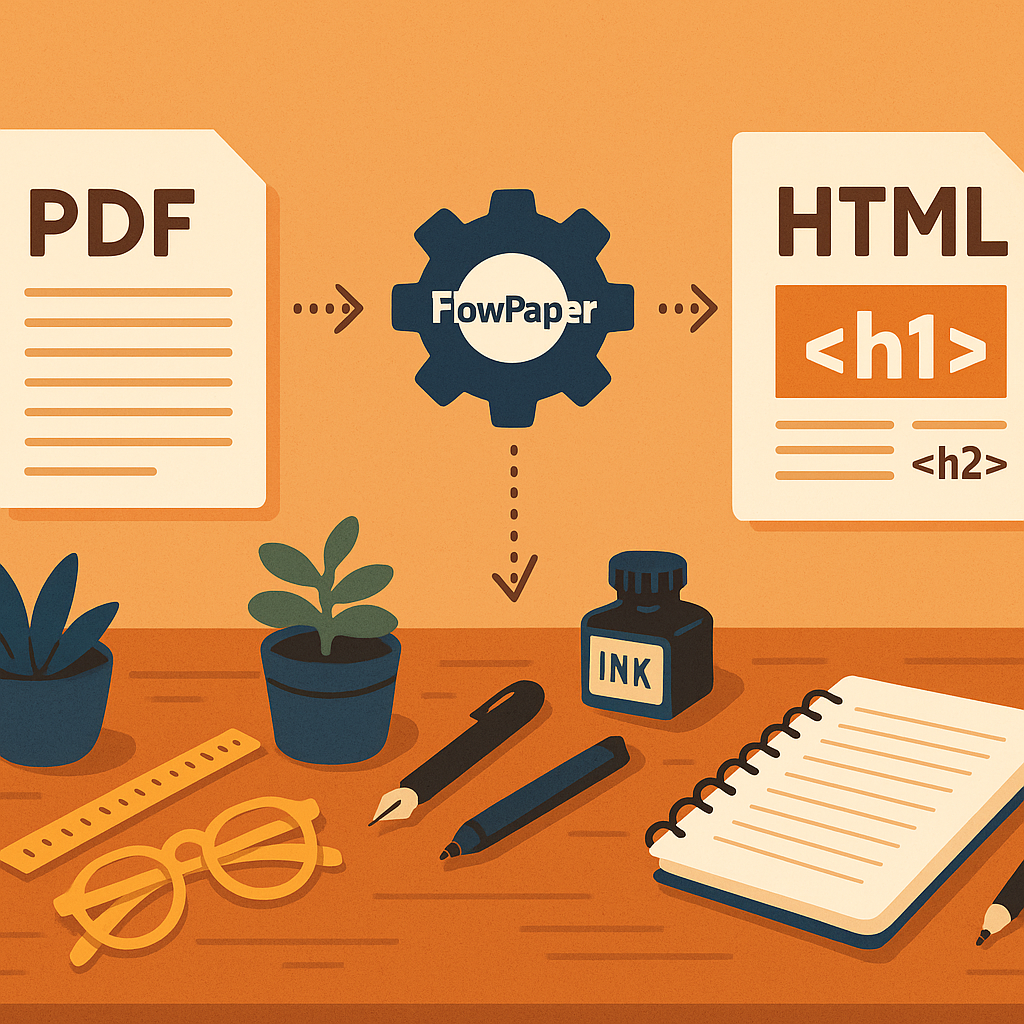
FlowPaper converts your PDF into clean, semantic HTML—exactly what search engines and AI systems prefer.
What You Gain
1. Real Headings
FlowPaper turns visual headings into proper <h1>, <h2>, <h3> tags that search engines depend on.
2. Structured Sections
Text is broken into meaningful segments, giving crawlers better entry points.
3. Better Crawlability
Search engines can navigate and interpret the HTML format far more accurately than a flat PDF.
4. Page-Level Ranking
Sections become individually indexable subpages—boosting visibility for more than just the document’s title.
Why This Matters for AI
LLMs like ChatGPT, Gemini, and others thrive on:
Structured HTML
Clean semantic markup
Accessible hierarchy
Plain PDFs provide none of that. A FlowPaper HTML publication gives AI tools the clarity they need to extract meaning accurately and consistently.
Creating a Search-Optimized Document
Making a searchable, AI-friendly document in FlowPaper takes just a few steps:
Import the PDF
Choose the “Elements → Maximize Accessibility” template
Enable SEO Enhancements (usually on by default)
Generate your HTML publication
You get a structured, optimized document ready for search and AI.
Proven Results
Across multiple tests, FlowPaper HTML versions beat PDFs every time:
Title searches → HTML ranks higher
Section title searches → HTML surfaces consistently
Text fragment searches → HTML outperforms PDFs
The advantage is simple: structure.
Conclusion
PDFs are convenient—but they’re terrible for SEO. FlowPaper transforms them into semantic, AI-readable HTML publications that:
Rank better
Reveal deeper content
Improve section-level visibility
Increase AI understanding and retrieval
If your organization relies on PDFs, FlowPaper unlocks the reach they’ve been missing.
We’ve boosted the flipbook video maker, so that the videos are made with even higher quality. Not everyone knows where to find it, so we recorded a video of how to import a PDF and convert it into a flipbook in video format.
Step 1: Open FlowPaper
Head to flowpaper.com/app
and click “Try for Free”. This opens FlowPaper’s online publisher — no installation
or account is required.
Step 2: Import Your PDF
Choose the PDF you want to animate. In this example, we’re using an annual report, but you can use
any PDF you like. Once you’ve selected your file, FlowPaper will prepare it for import.
Step 3: Choose the Zine Template
For this type of animated video, select the Zine template.
You’ll see several sub-templates appear below, each offering a slightly different animation style.
For this demo, stick with the first one called “Realistic 3D”.
Step 4: Import and Customize
FlowPaper’s import dialog gives you options for animations, transitions, and layout. You can fine-tune
these settings later, but for now simply go ahead and import your PDF using the default options.
Once your publication loads, you can adjust styles, colors, and even add interactive elements. Since this
tutorial focuses on creating a video, we’ll move straight on to uploading the publication.
Step 5: Upload and Share
Click the Share button in the lower-right corner of the screen.
When prompted to upload your publication, click Yes.
FlowPaper will then generate a shareable URL that you can use to showcase your flipbook online.
Step 6: Generate a Promo Video
Next, go to the Generate Promo Video section. Here you can add short text captions that
will appear in the video — for example, a call to action or teaser text.
You can also choose a visual template for your MP4 file. For this walkthrough, keep the default template
and type “Read Me Now” into the first text field. When you’re happy with the preview,
click Generate Video.
Step 7: Download Your Video
After a short moment, FlowPaper will render your flipbook as a video file (MP4).
Click Download Video, and it will open in a new browser tab or window.
From there, save it to your computer just like any other file: use
File → Save Page As… in your browser menu or press Command + S
(or Ctrl + S on Windows) and choose the folder where you want to store the video.
That’s It!
You’ve now transformed a static PDF into an animated flipbook video that’s ready to share on social
media platforms such as LinkedIn, Facebook, or anywhere you promote your content. It’s a fast and
engaging way to bring reports, brochures, and catalogs to life.
Ever since the dinosaurs evolved (almost!), online publishing has been dominated by closed platforms that start as convenient—but end up locking your content behind subscriptions, restrictive viewers and hidden dependencies.
At FlowPaper, we believe your documents, flipbooks and publications should remain in your control.
In this blog post, we’ll look at how FlowPaper’s self-hosted and licence-based approach gives publishers, businesses and designers more control and long-term freedom than subscription-only services such as Issuu.
The Problem: Content Lock-In & Hidden Costs
On Reddit you’ll find repeated complaints about flipbook platforms and web-PDF embedding in general:
“Just had my Issuu invoice through, gone up 420% with no warning! … We were with you for 3 years then boom 4× the previous amount!”
“PDFs are tough … the PDF is never truly responsive. … I’ve definitely seen it around so I might have to look further into it.”
“None of these embeddable flipbooks are accessible. … I bet the document they create isn’t accessible anyway.”
These aren’t isolated issues—they point to underlying structural problems of many flip-book or PDF embed platforms: you don’t fully control the viewer or data, your content might degrade in performance or accessibility, and you may be locked in.
FlowPaper was built around a simple principle: your documents should remain under your control.
That means:
You stay in full control and can self-host your flipbooks on your own website/server.
No embedding restrictions. You can embed them anywhere—company intranets, learning portals, marketing sites—without dependency on a remote SaaS viewer.
Choose between cloud hosting or a one-time/perpetual self-hosting licence, with no requirement to keep paying monthly just to stay online.
When you publish with FlowPaper, your flipbooks remain live as long as you maintain your hosting.
No forced subscriptions. No surprise shutdowns when you stop paying.
Flexible Licensing, No Hidden Hooks
Instead of a one-size-fits-all subscription model, FlowPaper offers flexible licensing:
Free trial edition: gets you started without needing to sign up for anything.
Zine license: one-time fee or perpetual, depending on your scale.
Creative and Team editions: a managed hosting option with more analytics—but with an easy escape path anytime.
Whether you’re a designer uploading a catalogue or a developer building dynamic document flows, FlowPaper’s flexible architecture gives you freedom instead of friction.
Choose Publishing Freedom
If you believe your work, brand and audience deserve independence without recurring fees, restrictive viewers or vendor-coupling—then it’s time to explore FlowPaper’s self-hosted options.
FlowPaper has been updated to ensure full compatibility with the latest MacOS release, macOS Tahoe.
This update was required because FlowPaper’s desktop application is built using Electron, which was affected by changes introduced in macOS Tahoe. These changes impacted how Electron interacted with system libraries, resulting in stability issues for some users.
FlowPaper has updated its version of Electron, which resolves these compatibility problems and ensures that the application runs as expected on macOS Tahoe.
Key improvements:
Stable launch and runtime behavior on macOS Tahoe
Compatibility with updated macOS system libraries and security policies
Elimination of known rendering issues linked to the previous Electron version
Users on macOS are advised to update to the latest version of FlowPaper to ensure full functionality.
We’re excited to announce the release of FlowPaper 3.9.3! This update brings a set of improvements and fixes designed to make your digital publishing experience even more reliable—especially for those using the Zine template.
What’s new?
Printing Reliability Improved: Fixed an issue that caused printing problems for some publications in certain configurations. Printing your documents is now more consistent and dependable.
Clearer Table of Contents & Search: The Zine template’s table of contents and search results now feature improved font size and style, making it easier for readers to navigate and find information.
No More “Double-Dragging” Glitches: Resolved a bug where dragging the same page twice could briefly make it disappear in the Zine template. Page navigation is now smoother than ever.
3D Page Dragging & Flexible Zoom: You can now drag pages in 3D mode within the Zine template, offering a more dynamic browsing experience. Plus, a new setting lets you choose between single-click or double-click to zoom—customize it to fit your workflow.
We’re always listening to your feedback and working to make FlowPaper better with every update. If you have suggestions or want to see new features, let us know!
Stay tuned for more improvements, The FlowPaper Team
 A recent change introduced in Chrome caused an error in font loading, which affected how fonts were rendered in certain publications created with FlowPaper Desktop Publisher.
To address this, we created a patch and released an updated version of FlowPaper 3.9.4, which restores proper font loading and improves compatibility with the latest Chrome updates.
A recent change introduced in Chrome caused an error in font loading, which affected how fonts were rendered in certain publications created with FlowPaper Desktop Publisher.
To address this, we created a patch and released an updated version of FlowPaper 3.9.4, which restores proper font loading and improves compatibility with the latest Chrome updates.
 Recently, YouTube introduced new security changes that affected how embedded videos load inside third-party applications. This caused YouTube previews to stop appearing when adding video links inside the Desktop Publisher.
Today’s update restores full preview functionality. You can once again paste a YouTube link and instantly see the preview inside the editor—no extra steps needed.
If you're using video-enhanced publications, make sure to update to the latest version of the Desktop Publisher.
More improvements coming soon. Thanks for using FlowPaper!
Recently, YouTube introduced new security changes that affected how embedded videos load inside third-party applications. This caused YouTube previews to stop appearing when adding video links inside the Desktop Publisher.
Today’s update restores full preview functionality. You can once again paste a YouTube link and instantly see the preview inside the editor—no extra steps needed.
If you're using video-enhanced publications, make sure to update to the latest version of the Desktop Publisher.
More improvements coming soon. Thanks for using FlowPaper!